
Before we can write and execute our first program, we need to understand in more detail how programs get developed. Here is a graphic outlining a simplistic approach:
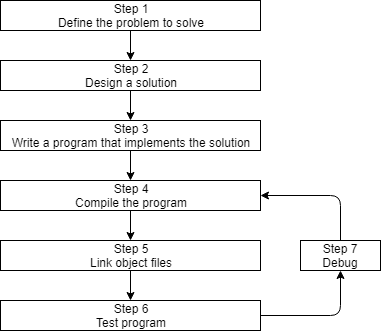
Step 1: Define the problem that you would like to solve.
This is the “what” step, where you figure out what you are going to solve. Coming up with the initial idea for what you would like to program can be the easiest step, or the hardest. But conceptually, it is the simplest. All you need is a an idea that can be well defined, and you’re ready for the next step.
Step 2: Determine how you are going to solve the problem.
This is the “how” step, where you determine how you are going to solve the problem you came up with in step 1. It is also the step that is most neglected in software development. The crux of the issue is that there are many ways to solve a problem — however, some of these solutions are good and some of them are bad. Too often, a programmer will get an idea, sit down, and immediately start coding a solution. This almost always generates a solution that falls into the bad category.
Typically, good solutions have the following characteristics:
* They are straightforward
* They are well documented
* They can be easily extended (to add new features that were not originally anticipated)
* They are modularized
The problem is largely with the third and fourth bullets — while it’s possible to generate programs that are straightforward and well documented without using a lot of forethought, designing software that is extensible and sufficiently modularized can be a much tougher challenge.
As far as extensibility goes, when you sit down and start coding right away, you’re typically thinking “I want to do _this_”, and you never consider that tomorrow you might want to do _that_. Studies have shown that only 20% of a programmers time is actually spent writing the initial program. The other 80% is spent debugging (fixing errors) or maintaining (adding features to) a program. Consequently, it’s worth your time to spend a little extra time up front before you start coding thinking about the best way to tackle a problem, and how you might plan for the future, in order to save yourself a lot of time and trouble down the road.
Modularization helps keep code understandable and reusable. Code that is not properly modularized is much harder to debug and maintain, and also harder to extend later. We will talk more about modularization in the future.
Step 3: Write the program
In order the write the program, we need two things: First we need knowledge of a programming language — that’s what these tutorials are for! Second, we need an editor. It’s possible to write a program using any editor you want, be it Window’s notepad or Linux’s gedit. However, we strongly urge you to use an editor that is designed for coding.
A typical editor designed for coding has a few features that make programming much easier, including:
1) Line numbering. Line numbering is useful when the compiler gives us an error. A typical compiler error will state “error, line 64″. Without an editor that shows line numbers, finding line 64 can be a real hassle.
2) Syntax highlighting and coloring. Syntax highlighting and coloring changes the color of various parts of your program to make it easier to see the overall structure of your program.
3) An unambiguous font. Non-programming fonts often make it hard to distinguish between the number 0 and the letter O, or between the number 1, the letter l (lower case L), and the letter I (upper case i). A good programming font will differentiate these symbols in order to ensure one isn’t accidentally used in place of the other.
Your C++ programs should be called name.cpp, where name is replaced with the name of your program. The .cpp extension tells the compiler (and you) that this is a C++ source code file that contains C++ instructions. Note that some people use the extension .cc instead of .cpp, but we recommend you use .cpp.
Also note that many complex C++ programs have multiple .cpp files. Although most of the programs you will be creating initially will only have a single .cpp file, it is possible to write single programs that have tens if not hundreds of individual .cpp files.
Step 4: Compiling
In order to compile a program, we need a compiler. The job of the compiler is twofold:
1) To check your program and make sure it follows the syntactical rules of the C++ language:
2) To take your source code as input and produce a machine language object file as output. Object files are typically named name.o or name.obj, where name is the same name as the .cpp file it was produced from. If your program had 5 .cpp files, the compiler would generate 5 object files.

For illustrative purposes only, most Linux and Mac OS X systems come with a C++ compiler called g++. To use g++ to compile a file from the command line, we would do this:
"g++" -c file1.cpp file2.cpp file3.cpp *
This would create file1.o, file2.o, and file3.o. The -c means “compile only”, which tells g++ to just produce .o files.
Other compilers are available for Linux, Windows, and just about every other system. We will discuss installing a compiler in the next section, so there is no need to do so now.
For complex projects, some development environments use a makefile, which is a file that tells the compiler which files to compile. Makefiles are an advanced topic, and entire books have been written about them. We will not discuss them here.
Step 5: Linking
Linking is the process of taking all the object files for a program and combining them into a single executable.

In addition to the object files for a program, the linker includes files from the runtime support library. The C++ language itself is fairly small and simple. However, it comes with a large library of optional components that may be utilized by your program, and these components live in the runtime support library. For example, if you wanted to output something to the screen, your program would include a special command to tell the compiler that you wanted to use the I/O (input/output) routines from the runtime support library.
Once the linker is finished linking all the object files (assuming all goes well), you will have an executable file.
Again, for illustrative purposes, to link the .o files we created above on a Linux or OS X machine, we can again use g++:
g++ -o prog file1.o file2.o file3.o
The -o tells g++ that we want an executable file named “prog” that is built from file1.o, file2.o, and file3.o
The compile and link steps can be combined together if desired:
g++ -o prog file1.cpp file2.cpp file3.cpp
Which will combine the compile and link steps together and directly produce an executable file named “prog”.
Step 6: Testing and Debugging
This is the fun part (hopefully)! You are able to run your executable and see whether it produces the output you were expecting. If not, then it’s time for some debugging. We will discuss debugging in more detail soon.
Note that steps 3, 4, 5, and 6 all involve software. While you can use separate programs for each of these functions, a software package known as an integrated development environment (IDE) bundles and integrates all of these features together. With a typical IDE, you get a code editor that does line numbering and syntax highlighting. The IDE will automatically generate the parameters necessary to compile and link your program into an executable, even if it includes multiple files. And when you need to debug your program, you can use the integrated debugger. Furthermore, IDE’s typically bundle a number of other helpful editing features, such as integrated help, name completion, a class hierarchy browser, and sometimes a version control system.
We will talk more about installing and using IDEs in the next section.
0.5 — Installing an Integrated Development Environment (IDE)
|
Index
|
0.3 — Introduction to C/C++
|
0.5 — Installing an Integrated Development Environment (IDE)
Index
0.3 — Introduction to C/C++
OK
Then shut the **** up.
^ Words of a truly ignorant person.
Next time, try using more verbal restraint and less use of the F word. Especially when it’s filtered out, YYTGgyugsdc. I understand you’re bothered by childish comments, but so is everyone else and they more than half the time don’t argue.
:3
getting closer to real programming…
[...] — Command line arguments By Alex As you learned in the introduction to development lesson, when you compile and link your program, the compiler produces an executable file. When a [...]
[...] 2007 Prev/Next Posts « 0.4 — Introduction to development | Home | 0.6 — Compiling your first program » Monday, May 28th, 2007 at 6:18 [...]
[...] 2007 Prev/Next Posts « 0.2 — Introduction to programming languages | Home | 0.4 — Introduction to development » Sunday, May 27th, 2007 at 3:32 [...]
Agreed! :)
I actually am learning stuff from this tutorial I didn’t previously know. After being in the field(s) I specialize in for 7 years it’s been a long road. I am finally learning a few things I have always wondered about. Some of the way you explain things make it to where I don’t think I will forget what I am learning. Thanks again for the great tutorial.
I’m only beginning to read this tutorial, but it seems very promising. Thanks for the effort.
And to make it even better for everyone you can fix this typo:
“a class heirarchy browser”
I’m completely new to programing (aside from some MS-DOS batch scripting) and I was wondering if anyone had a recommendation as to a code editor and compiler. I would be very grateful.
I recommend the Visual Studio.Net IDE or Visual C++ Express. Visual Studio.Net comes with Visual Basic.Net, Visual C#.Net, Visual C++, and Visual Web Developer all complete with compilers and linkers for creating obj code and a standalone exe for each project each language by itself is available for free download off of msdn2.com and the complete Visual Studio.Net has a 3 month free trial
Code::Blocks is a good one.
NetBeans IDE is a very good one. Also: Visual C++
Sorry about my last comment. I like to work on things as I read them. Maybe I should read all the instructions THEN ask questions. :-)
awww i always get cinfused around this part when there is things telling me did it woork and im like uhhhhh????
What was the problem again?
This tutorial seems to be good. i think it helps that i no alot of Visual basic, but this seems to be getting me through. hopefully i will know C++ properly by the end of next month XD…
Using xd face should get you an ass whooping!
Using curse words on such a user-friendly site should give you the banhammer!
Like the way author has explained concepts.
I’m getting… closer to some practical work… closer… come on… faster…. uh
Use microsoft visual studio 2005 express edition or microsoft visual studio 2008 express edition.
Type it in Google and check a few links and download it.
NetBeans IDE is a very good one. Also: Visual C++. There are more. You just have to find one that is suited for you. :D
DSHIDHSUIOHDSIOV DHUIOHOBOD
Microsoft Visual C++ 2008 Express Edition!!very nice complier..DOWNLOAD :D
can anyone tell me what command to use for running a compiled program on a secure shell (putty)? Thanks
This tutorial is great!(or as Data would say, “intriguing!”)
I initially didn’t plan on getting into the programming scene, because I am a licensed PC Repair Technician, and my workload is outrageously huge. But my job expects me to know a couple programming languages (I know HTML and CSS, but they are not exactly software programming languages- oh and I know Binary haha), and this tutorial is actually enjoyable to read. And it’s perfect for people my age (16 years old) because it’s free (I KNOW!!!!!), and easy to understand.
Thanks so much!
I am totally up to learning more languages now :]
i’ve never touched any programming… unless you consider HTML as one. but this tutorial made it so simple for me to understand :) Thank you so much!
I use dev-c++ It has a compiler built into it.
hmmm, seems like a decent tutorial, I use g++ on karmic for my compiling, and just plain gedit for editing
Thanks for these guides, when I was younger I tried this guide but failed. Now I understand it a lot better, I was mainly stuck on the 2nd guide but now I’m whizzing through and understanding it all. Thanks for all the examples, tips, statistics and diagrams- they are really helpful!
Also thanks for the forum, I got some questions answered there!
Looking for friends to learn C++
My MSN is dahai.88@hotmail.com
thanks!
this will be a pain the butt for me cause im 11 so ill just buy a book
It could be that at the age 11 your mind has not yet matured to the point of understanding a lot of these variables. I would give it a couple more years.
Yeah, because the text on the website is far different from texts in a book. You’re a real ****ing smart kid.
i really like how this tutorial was not very os picky. thanks for having instructions for mac too most people leave macs out. idk why?
but overall this was easy to understand
Your mom was helpful last night.
Hey I think you have a typo in the beginning of step 3. You wrote “In order the write the program”, if this is not a typo than I apologize for wasting your time. Nevertheless you have a great tutorial and I look forward to all read all your work!
“All you need is a an idea…”
The first ‘a’ is not needed.
Just wanted to clear something up about gedit on Linux. gedit supports line numbering, automatic indentation, syntax highlighting for just about every language I’ve ever heard of plus more, a terminal can be embedded right in the bottom of the editor window, snippets – user defined lines that can be entered using keyboard shortcuts, and much more.
Check out http://projects.gnome.org/gedit/
Although not the same as a full featured IDE, still a great programming editor.
I think this tutorial is so far really fun. I have already installed Visual c++ express 2010, with some other addons to make it easier and more possible to program. But good job.
guy’s on a serious note i want to learn c++ programming language and i want to thanks this site to provide me the material to learn about programming,, but as i am new to this programming field i want further assistance. so that i can understand programing in more simpler terms.
Thankzzzzzzzzz.much.best way 2 learn..4 me…..
GTFO, or go back to myspace.
Lol @ all the little kids on here “OMg, now I can hacks my games and get unlimited money” or “OMG THIS SITE IS TOO COMPLICATED IM GOING TO BUY A BOOK INSTEAD”….lol little kids just give up now.
Hi, I have a really stupid question. I am trying to copy and paste the first “hello world” code into Xcode on my mac, and it failed to build with exit code 1. What does that mean, and how can I fix it? I downloaded my Xcode from Mac website, and do I have to set it up in some way to make it function for c++. Thank you!
Awesome Tutorial. Wish I had stuff like this back when I started learning VB.
Actually I dont have a problem to solve :/ but I agree that this is an awesome tutorial ;)
Well in that case define your view on the word ‘problem’.
Problem in this case might be anything e.g. – I need a program that does , etc.
This tutorial was not in fact developed for visual C++, it was developed for unmanaged C++ and so the newer versions of Visual Studio will not handle it properly. All the code presented on this website are valid and will have no comparability issues except with certain newer IDE’s. I suggest Dev c++ by bloodshed.
i’m new here and new @ programming what should i do to learn from scratch. Help me because c++ is the only language i want to learn.
Sentence correction:
Step 3: Write the program
In order “the” write the program, we need two things:
“the” should be changed to “to”.
This is a great tutorial.I just started my C++ class in school (+1).But this site helps me to learn more which are not in my text book.Thanks Alex for this wonderful website.
God Bless You!
Hi,
At beginning of Step 3: Write the program.
“In order the” needs to be changed to “In order to”.
Thanks
more information on c++
http://bhaincode.blogspot.in/