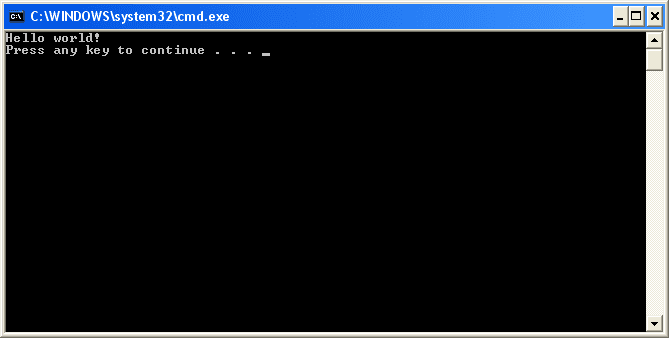
Before we can write our first program (which we will do very soon), we need to know two things about development environments.
First, although our programs will be written inside .cpp files, the .cpp files themselves will be added to a project. Some IDEs call projects “workspaces”, or “solutions”. The project stores the names of all the code files we want to compile, and also saves various IDE settings. Every time we reopen the project, it will restore the state of the IDE to where we left off. When we choose to compile our program, the project tells the compiler and linker which files to compile and link. It is worth noting that project files for one IDE will not work in another IDE.
Second, there are different kinds of projects. When you create a new project, you will have to pick a project type. All of the projects that we will create in this tutorial will be console projects. A console project means that we are going to create programs that can be run from the dos or linux command-line. By default, console applications have no graphical user interface (GUI) and are compiled into stand-alone executable files. This is perfect for learning C++, because it keeps the complexity to a minimum.
Traditionally, the first program programmers write in a new language is the infamous hello world program, and we aren’t going to deprive you of that experience! You’ll thank us later. Maybe.
A quick note about examples containing code
Starting with this lesson, you will see many examples of C++ code presented. Most of these examples will look something like this:
#include <iostream>
int main()
{
using namespace std;
cout << "Hello world!" << endl;
return 0;
}
If you select the code from these examples with your mouse and then copy/past it into your compiler, you will also get the line numbers, which you will have to strip out manually. Instead, click the “copy to clipboard” link at the top of the example. This will copy the code to your clipboard without the line numbers, which you can then paste into your compiler without any editing required.
Visual Studio 2005 Express
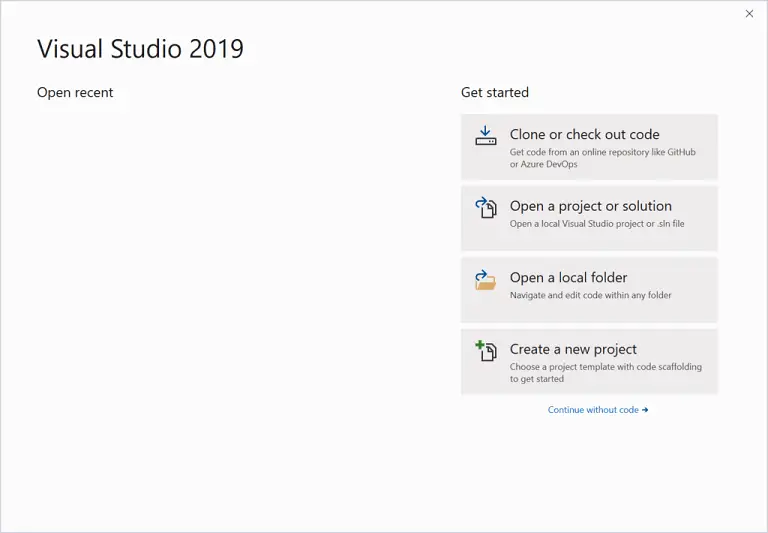
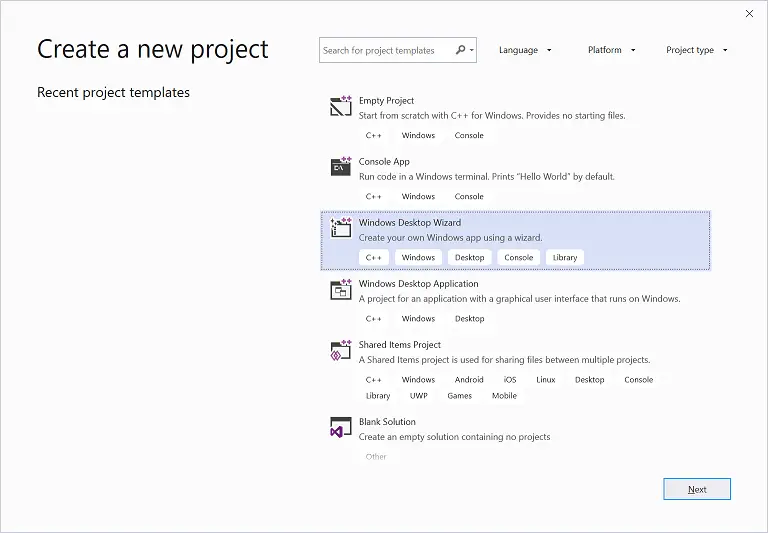
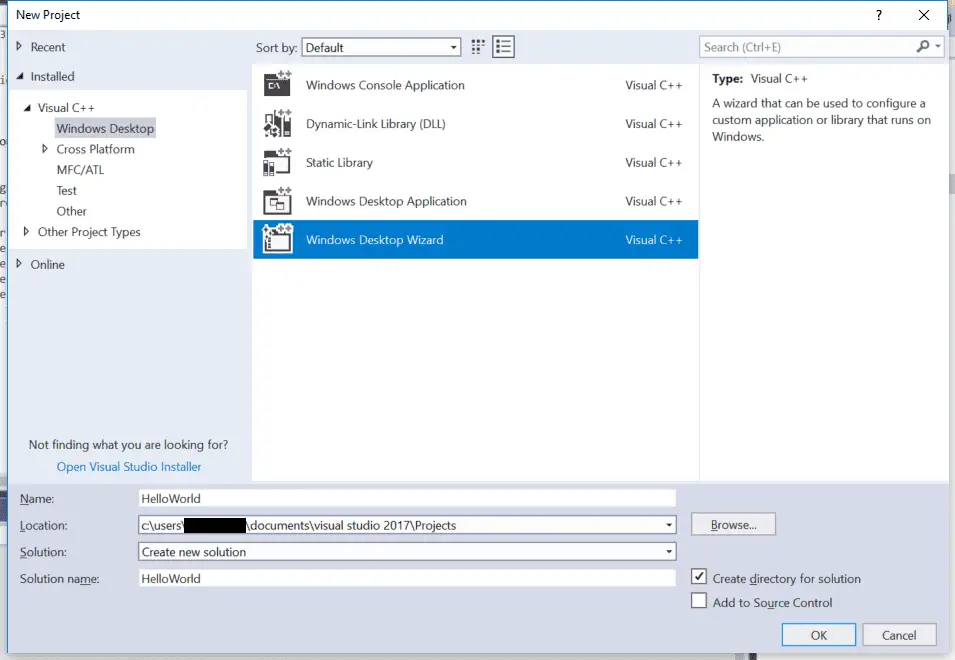
To create a new project in Visual Studio 2005 Express, go to the File menu, and select New -> Project. A dialog box will pop up that looks like this:
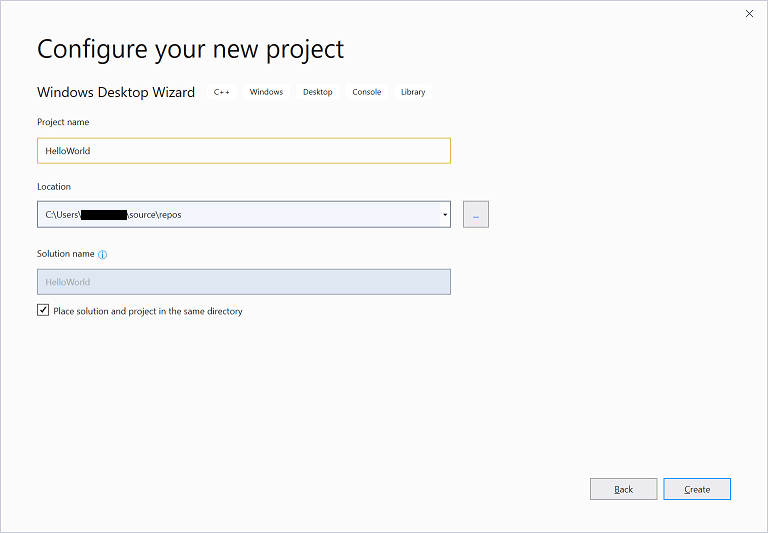
Select the Win32 project type, and Win32 Console Application will automatically be selected for you. In the Name field, you will enter the name of your program. Type in HelloWorld. In the Location field, pick a directory that you would like your project to be placed into. We recommend you place them in a subdirectory off of your C drive, such as C:\VC2005Projects. Click OK, and then Finish.
On the left side, in the Solution Explorer, Visual Studio has created a number of files for you, including stdafx.h, HelloWorld.cpp, and stdafx.cpp.

In the text editor, you will see that VC2005 has already created some code for you. Select and delete the _tmain function, and then type/copy the following into your compiler:
#include "stdafx.h"
#include <iostream>
int main()
{
std::cout << "Hello world!" << std::endl;
return 0;
}
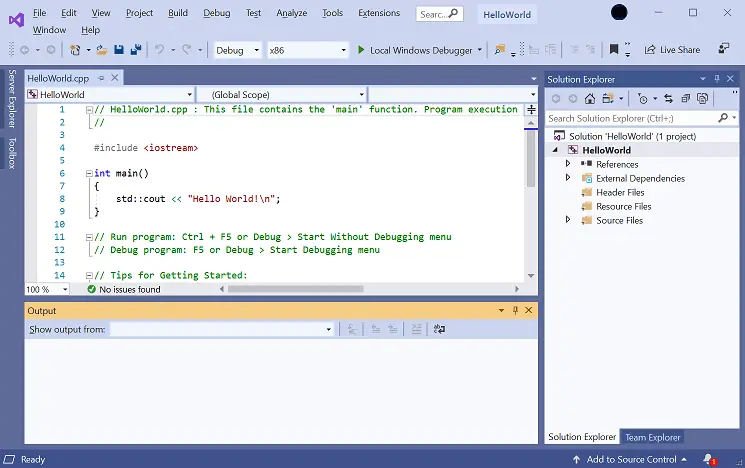
What you end up with should look like this:

To compile your program, either press F7 or go to the Build menu and choose “Build Solution”. If all goes well, you should see the following appear in the Output window:

This means your compile was successful!
To run your compiled program, press ctrl-F5, or go the Debug menu and choose “Start Without Debugging”. You will see the following:

That is the result of your program!
Important note to Visual Studio users: Visual studio programs should ALWAYS begin with the following line:
#include "stdafx.h"
Otherwise you will receive a compiler warning, such as c:\test\test.cpp(21) : fatal error C1010: unexpected end of file while looking for precompiled header directive
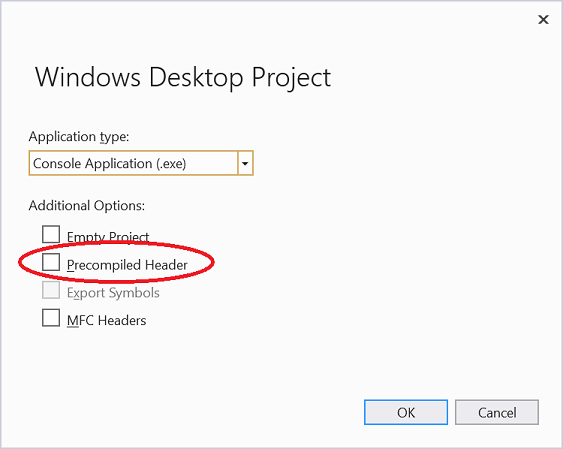
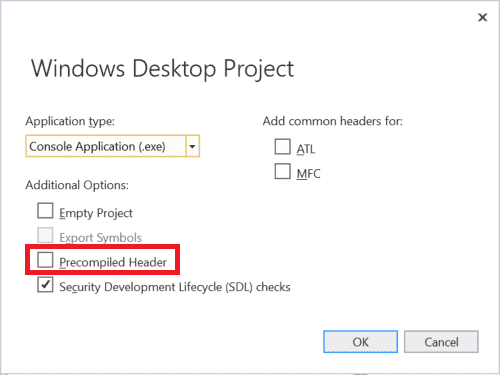
Alternately, you can turn off precompiled headers. However, using precompiled headers will make your program compile much faster, so we recommend leaving them on unless you are developing a cross-platform program.
The example programs we show you throughout the tutorial will not include this line, because it is specific to your compiler.
Code::Blocks
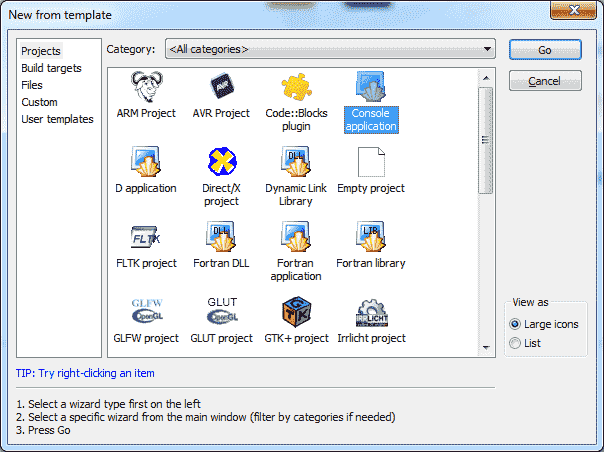
To create a new project in Code::Blocks, go to the File menu, and select New Project. A dialog box will pop up that looks like this:

Select Console Application and press the Create button.
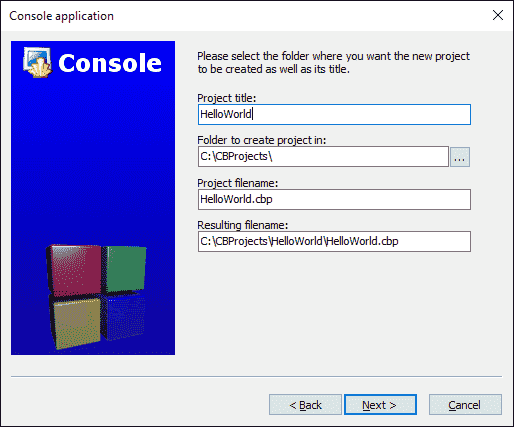
You will be asked to save your project. You can save it wherever you wish, though we recommend you save it in a subdirectory off of the C drive, such as C:\CBProjects. Name the project HelloWorld.
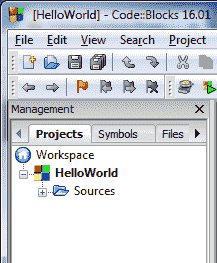
You will see “Console Application” under the default workspace:

Open the tree under “Console Application”, open “Sources”, and double click on “main.cpp”. You will see that the hello world program has already been written for you!
To build your project, press ctrl-F9, or go to the Build menu and choose “Build”. If all goes well, you should see the following appear in the Build log window:

This means your compile was successful!
To run your compiled program, press ctrl-F10, or go the Build menu and choose “Run”. You will see something similar to the following:

That is the result of your program!
Using a command-line based compiler
Paste the following into a text file named HelloWorld.cpp:
#include <iostream>
int main()
{
using namespace std;
cout << "Hello world!" << endl;
return 0;
}
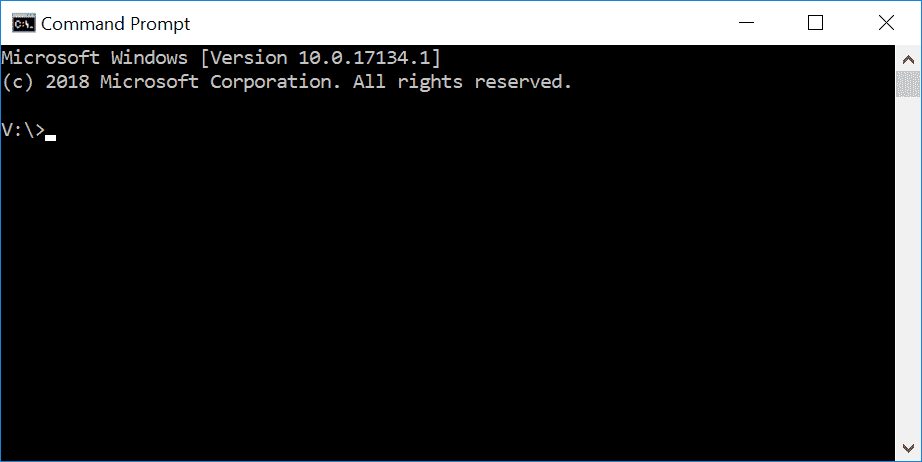
From the command line, type:
g++ -o HelloWorld HelloWorld.cpp
This will compile and link HelloWorld.cpp. To run it, type:
HelloWorld (or possibly .\HelloWorld), and you will see the output of your program.
Other IDEs
You will have to figure out how to do the following on your own:
1) Create a console project
2) Add a .cpp file to the project (if necessary)
3) Paste the following code into the file:
#include <iostream>
int main()
{
using namespace std;
cout << "Hello world!" << endl;
return 0;
}
4) Compile the project
5) Run the project
If compiling fails
If compiling the above program fails, check to ensure that you’ve typed or pasted the code in correctly. The compiler’s error message may give you a clue as to where or what the problem is.
If you are using a much older C++ compiler, the compiler may give an error about not understanding how to include iostream. If this is the case, try the following program instead:
#include <iostream.h>
int main()
{
cout << "Hello world!" << endl;
return 0;
}
In this case, you should upgrade your compiler to something more compliant with recent standards.
If your program runs but the window closes immediately
This is an issue with some compilers, such as Bloodshed’s Dev-C++. We present a solution to this problem in lesson 0.7 — a few common cpp problems.
Conclusion
Congratulations, you made it through the hardest part of this tutorial (installing the IDE and compiling your first program)! You are now ready to learn C++!
0.7 — A few common C++ problems
|
Index
|
0.5 — Installing an Integrated Development Environment (IDE)
|
Are you looking to earn an online programming degree? If you want to get a degree in education sign online today. By getting an online degree you are learning on your own time; online educations can fit right into your schedule. You won't have to worry about making it to class on time. Getting your education online is the education of the future!
0.7 — A few common C++ problems
Index
0.5 — Installing an Integrated Development Environment (IDE)
There are 2 different things you have “using namespace std;” while in the pic example you have “std:: cout
[ Code::Blocks does that by default, so I just left it. Either way works. -Alex ]
Very useful tutorial- especially for beginers for me! Thanks a lot!
Extremely useful and easy to understand ans follow. Thank you guys for a great work.
How could I get this for Dev-Cpp? I did it, but the executable file flashes for .1 of a second and closes.
ok for dev c++ before you close your }
you need to put
system(”pause”);
return = 0
Thats one way to do it, but in that case you have to include cstdlib in the preprocessor directive (just put #include in the beginning of the program).
System(”Pause”); and other commands like that are’nt good. A good programmer should use something like
char a;
cin >> a;
or
cin.get();
in the end of the source code, so the program waits for the user for press something, and then exit.
But I understand that if you just write something fast, you dont want to add that and just use
system(”PAUSE>nul”);
Add the following line just before the return statement in main():
Thus,
#include <iostream> int main() { using namespace std; cout < < "Hello world!" << endl; cin.get(); return 0; }cin.get() in “C++” is equivalent to getchar() in “C”, i.e., the compiler waits for any key input from the user
Alex just so you know I’m not sure if its because Microsoft updated Visual C++ or something but I got my project to compile without the #include “stdafx.h”
Thanks!
Thanks Brian for that comment.
Since I had no experience at all in anything, I got confused.
By the way the end1 is endl (LOWERCASE L)
i thought it was a 1 and i took an hour trying to figure out what was wrong lol.
Some people do:
#include <iostream> int main() { std::cout << "Hello World!n"; return 0; }Is there a difference and a reason? Do some compilers only accept that?
I presume you are talking about the difference between:
and
It’s really just two similar but slightly different ways of doing the same thing. Both should work on all compilers.
To elucidate slightly, the cout object lives inside a namespace called std. If you just use the name cout, the compiler doesn’t know to look inside of the std namespace. Consequently, you have to tell it to look there. There are two ways to do this: directly (std::cout), or indirectly (using the using statement, which basically sets up a default namespace that the compiler will look in if it can’t resolve symbols). Using std::cout is the safer solution, but can make for ugly code if you’re doing lots of I/O. In those cases, the using statement can be a better choice.
BTW: Including iostream inside PRE tags seems to work fine for me:
Thanks. Great site you got by the way.
I’ll stick with the using statement because I’ve seen people use a lot of I/O and it looked very ugly as you said.
Maybe I’m not doing it right.
Your #include iostream looks fine to me.
What do you mean by “Using std:: is the safer solution?” Is it more efficient/faster by not loading the entire namespace or just more compatible? Thanks!
I don’t get the “using namespace std” thing coz i don’t know what’s a namespace and what’s std(standard??)
And in my book they have written using namespace std before int main()…….does that make any difference?
Don’t worry about the namespace thing right now. I cover namespaces in a future lesson when you’re better equipped to understand what a namespace is.
If you put using namespace std outside of main (but not in another function), it affects the entire rest of the file. If you put it inside a function, it only affects rest of the function.
There’s really no right or wrong way to do it. I prefer to do it on a function-by-function basis because it’s slightly safer, but for simple programs either way is fine.
When using a command line to compile (ms vs c 2008 express ed.), what does the “-c” mean in the following command? (i.e. cl SomeFile.cpp -c).
Depends on the compiler. With g++, -c means “compile to object files, but don’t link into an executable file”. With Microsoft’s command line compiler, -c doesn’t mean anything because cl.exe uses slash commands (/) rather than minus commands (-).
thanks bro, this helped me out alot! thnaks for helping me write my first C++ program
code compiles fine, and i can run the .exe from the command line. the problem is this…
once the program is complete the console window closes automatically.
so i only see the hello world for a nanosecond!
how can i make the window stay open, or do the “press any key to continue” bit?
thanks!
That’s addressed in the very next section: a few common cpp problems. :)
I’m following this well, but the problem is that using this Microsoft Visual C++ 2008 version, I don’t have the header file or the source file created from the start. I only have three empty files in the tree.
I’ve managed to write as you did, but how do i create those other files?
–edit–
I managed to add a header item to the folder and coded
and it seemed to work! Is that what is coded in the header file in the example above?
I’m not sure I understand your question. However, just to make it clear, in order to use cout (which is what puts your text on the screen), you have to include iostream, because that’s where cout is defined.
Hi, i am sorry i know this is very basic but i cannot find how to open Code::Blocks please somebody help me. By the way i have both Visual C++ 2005 Express Edition (which i am using for tutorial) and i have Microsoft Visual Basic 2008 Express Edition (decided to use 2005 for a better reference from tutorial) Please somebody help me.
I don’t know if anyone else has this problem but when I compile it fails. It’s “error prj0003 : error spawning ‘rc.exe’.” I’ll copy your code into my file but I just want to know why this happens.
It’s odd but I figured the problem was with my comp and the IDE clashing at some point. After a couple of reinstallations I gave up and installed the 2005 version. Everything worked.
CHEERS
Hi Alex, I am trying to compile a “.c” file using this compiler but I fail.
I can, following through this tutorial compile a “.cpp” file.
Could you help me please?
Thanks in advance.
nevermind Alex, I’ve figured it out just now.
thanks, anyway
Very nice. This got me up and running quite nicely.
Umm I’m a complete noob…
I’m using Code::Blocks and for some reason I can’t run the hello world program…
I put the code in, pressed build (successful), and when I click ‘run’ nothing happens.
Any ideas…?
My guess is that your program is running and then terminating so fast you can’t see the result. Read the part of this tutorial entitled “If your program runs but the window closes immediately” and see if that fixes your issue.
Hi Alex,
I use Visual C++ 2008 and when I create a Win32 console application I get an extra file: “targetver.h”. This file seems to define the minimum configuration required for my program:
#pragma once
// The following macros define the minimum required platform. The minimum required platform
// is the earliest version of Windows, Internet Explorer etc. that has the necessary features to run
// your application. The macros work by enabling all features available on platform versions up to and
// including the version specified.
// Modify the following defines if you have to target a platform prior to the ones specified below.
// Refer to MSDN for the latest info on corresponding values for different platforms.
#ifndef _WIN32_WINNT // Specifies that the minimum required platform is Windows Vista.
#define _WIN32_WINNT 0×0600 // Change this to the appropriate value to target other versions of Windows.
#endif
But I don’t have Windows Vista, just XP. So far it runs just fine, but I’m wondering if I shoudn’t swith for Visual C++ 2005 right now; or can I keep going like that?
This file “targetver.h” is called in “stdafx.h”, and if I remove the command, it runs again. But maybe some more advanced features will require this file.
To make it short, I’m just wondering if I can run C++ 2008 without having Vista.
Thanks a lot for this tutorial.
If I’m not mistaken (and someone correct me if I am), the _WIN32_WINNT #define tells Visual Studio which set of Windows header files to compile your programs with. Visual Studio 2008 defaults to 0×0600 because they assume you will be coding Vista programs. If you’re coding programs that you want to run on WinXP, you should probably change this to 0×0501 (0×0502 for XP SP2) as this will ensure you don’t accidentally use Vista-only functions.
Note that this has nothing to do with whether you can run VS2008 on XP — you can. It only has to do with what OS the programs you COMPILE using VS2008 can run on.
I am wondering how to get the Code::Blocks templates to show up. I have tried the add and create on the solution thingy.
The link below is what I have done
http://s279.photobucket.com/albums/kk152/dude915/?action=view¤t=Help.jpg
As i saw this is a standard online guide for C++ and Hellow World. Questions and Request:
1. Can it be update for Mobile/PDA OS Nokia, Microsoft “hello world” too, using code block or IDE MS2008 ?
i am tired to find it and central url as my blog, but c++ tutorial seems great in this site.
The information presented on this site is generally platform agnostic. Anything that is Windows specific is explicitly noted (or should be — if it isn’t, let me know). If you’re developing on another platform, the code presented in these tutorials should work (assuming your compiler implements language support correctly), but you will of course have to figure out how to actually get it to compile yourself. :)
I’m using Code Blocks for Mac Os X and I got the program compiled correctly, however; when I use ctrl-F10 to start it, I get a message saying that the file does not exist. I can go through and open it by itself from outside the Code Blocks program and it runs correctly. I was wondering if there was some way to fix this problem so I can run it from Code Blocks. Thanks in advance.
Hmmm, I have used Code::Blocks in the past and not had this problem. Did you start a new project, or did you just create a new file? I believe your problem lies there. Always start by creating a new project.
No, I have the same error, and I opened a new Project. It says, and I quote:
“Conversion – Debug” uses an invalid compiler. Skipping…
Nothing to be done.
I’ve looked all over the internet, and nobody seems to have any idea how to fix this.
microsoft visual studio 2008
new project
visual c++
win32.
comes with two ‘visual studio installed templates’
1) Win32 console application
and
2) win32 project.
whats the differnece between the two?
the simple reason and the complex reason would be much appreciated.
thanx dan
A console project is one that uses the MS Dos console and has no windows graphical user interface. A win32 project is one that has an actual window/dialog box.
Once again, never mind. I figured it out. In case someone else ends up with the same problem down the road, you can’t have spaces in the filepath and I don’t think it liked my main folder name “C++Programming” either.
Every time I try to create a new project, it says “Automation sever cannot create object.” Or something to that effect. What’s going on?
What OS and compiler are you running on? It sounds to me like you perhaps have selected the wrong type of project. Are you sure you’re creating console applications?
I’m using Windows XP and Microsoft Visual Studio 2008. As far as creating console applications, I’d been following the instructions up until I got that error message.
Microsoft has an informational page on a potential cause of this: http://support.microsoft.com/kb/323885
when I try to run the program the window flashes just long enough to know it was there(about half a second) then disappears, any help? Im using Dev-C++
#include "stdafx.h" #include <iostream> int main() { std::cout << "Hello Alex!" << std::endl; return 0; }I did it without looking!! (on my fourth try).
problem durin compilation with visual c++ 2008
it shows the followin error
msvcp90d.dll not found
try reinstallin
but still dusnt work….
Is msvcp90d.dll in your windows\system32 directory?
Hello I Am Using Code::Blocks, And Am Having trouble with compiling. When I Select console application, I am prompted to select a compiler, but there is like 50 to choose from on the list, and all of them give me the same error when i compile.
Please Help
i have found that the first-run compiler autodetection fails on vista. or maybe it is that it never even runs. you need to go into the compiler settings and the toolchain executables tab and choose autodetect. this should find the mingw compiler that should have been installed with your codeblocks (you should be running the codeblocks installer that comes WITH mingw and has mingw in the name, unless you are installing it seperately). this fixed the invalid compiler error for me.
You need to download and install a compiler I think, I do not believe Code::Blocks comes packed with one. A good compiler to use is the GCC (Gnu Compiler Collection), but to my knowledge it can be quite hard to set up a compiler on your own if you do not have the appropriate knowledge.
Depending on what platform you use, there are solutions to this. If you run OSX (as I do), you will find GCC and the complete IDE Xcode on the installation disc for OSX (just insert it and look for optional installs and Xcode tools), that will install GCC as well.
If you are running Windows, I would suggest downloading and using DevC++, its good, and comes with a compiler out of the box I think.
Email me if you have further problems (csvanefalk@hushmail.me)
i cant get code blocker to work when i push ctrl+F9 i get this when its done comp C:\Program Files\CodeBlocks\MinGW\bin\ld.exe: cannot open output file \\bin\Debug\C\CBProjects.exe: No such file or directory
collect2: ld returned 1 exit status
the following is what i have entered, i must have made a mistake when it said to delete the _tchar function.
What have i done wrong.
thanks
cannot get the iostream to display in this message
// HelloWorld.cpp : Defines the entry point for the console application.
//
#include “stdafx.h”
#include iostream
int _tmain(int argc)
{
return 0;
}
int main()
{
std::cout << “Hello world!” << std::endl;
return 0;
}
Get rid of _tmain(). You don’t need it for these kinds of programs. Also, it should be:
Don’t forget the angle brackets.
(PS: Put your code in <pre> tags and you will be able to use angle brackets in messages)
i just started to learn C++
i have mocrosoft visual studio 2008 professional
i see here you use mvs2005
so i cant do some things that u do here as code::blocks; please help me… it is my first time and i have no one to help me
All of the code that works with MSVS 2005 should work with the 2008 version as well. The code::blocks stuff is just for people using that compiler and can be skipped if you’re using the MS compiler.
You said ‘delete the _tchar function’, but I think you should have said ‘delete the _tmain function’.
[ You are correct. Thanks for letting me know. :) -Alex ]
Hi alex i have a problem when i run the first version of the program in “Start without Debugging ” i get a message “The application has failed to start because MSVCR90.dll was not found.Re-Installing the application max fix the problem”
What have i done wrong i followed everything you said?
Please reply soon i cant continue on!
I am not sure what is going on. MSVCR90.dll is a windows dll that programs compiled with visual studio 2008 need to run. It should be in your windowssystem32 directory (I think).
Hi, got down to the section in 0.6 – “Using a command-line based compiler”, on a Windows XP machine, am a bit confused as to where/what directory the HelloWorld.cpp ‘text’ file, created in notepad, should be placed. And where the command line is. If i run the command ‘g++ -o HelloWorld HelloWorld.cpp’ from the Windows ‘cmd’ screen, I get an error.
Regards Chris
On Windows, I highly recommend using an IDE. It makes things much easier.
You probably got an error because you never installed g++, which I do not cover how to do in this tutorial because using an IDE is much simpler.
You probably need to install g++ if you want to compile from the command line. But I highly recommend using an IDE if you are learning.
Hey Alex first i just want to say thanks for this tutorial is very detailed and helpful…i have a question for you…i want to make a driver for ps3 controller to work on my vista 64, am i on the right track..learning c++ programming? or you suggest me to try something else?..tahnks again!
Hey my visual c++ studio is saying there is a build error ive done the exact same thing and it keeps on saying that it cant find the file
If you write exactly which error you got, I think somebody could help you solve it :)
ok so is there a diference between codeblocks and visual, do i need them both or only 1? ahh this is alot of stuff lol
You only need one of them. I recommend Visual Studio if you’re developing on Windows.
I love this site. However it would be nice to see a Makefile tutorial.. those things are a real brain ache.
That’s one of the best things about modern IDEs — no need to create Makefiles because the IDE does it for you!
I was never very good at Makefiles anyway.
Whenever I build Helloworld, the output shows up fine, but when I press Crl-F5,it says
Executable for Debug Session
Please specify the name of the executable file to be used for the debug session.
Executable file name:
URL where the project can be accessed (ATL Server only):
OK
Cancel
And then the command prompt does not run.
Please Help!!!
Did you ever work this out as I’m having the same problem.
i had the same problem. i right clicked on the bold HelloWorld in the explorer on the right, chose properties > General > Project Defaults and for “configuration type” i changed it from DLL to exe. this seems to have worked. i am a newbie, so take this all with a big grain of salt.
It’s worth mentioning that Linux distros do not necessarily have xterm installed. CodeBlocks can be modified to use the gnometerminal through Settings > Environment and change the Terminal to launch program to “gnome-terminal -x”.
You don’t have to install xterm.
john
Going great so far but….
Not sure i shold worry about this but my outpur is showing an extra line.
Using windows and Code::Blocks but can see nothing different in the code and it compiles correctly?
Don’t worry, everything is alright. It’s just showing execution time and return code.
When i went to build and than subtabbed to build the Build log said “nothing to be done” it wont run or anything what do i do?
It’s hard to say without more information about what you actually tried. Did you try executing your code after building it?
Whenever I build Helloworld via MS C++ 2008 I can compile fine but but when I press Crl-F5,it asks for the location of the ‘Executable for Debug Session’. I thought maybe this is where it runs the message? I tried C:\WINDOWS\system32\cmd.exe but all it does is print the path of the cpp file in the window rather than hello world. help!
This has got to be the best C++ programming website that I have been to.
Finally, someone knows how to teach the new generation of programmers. :)
Props.
I can’t find my compiler on visual c++ 2008 express edition
i got a problem compiling
#include "stdafx.h" #include <iostream> init main() { std::cout<< "Hello World!" <<std::endl; return 0; }but when i compile i get
1>—— Build started: Project: HelloWorld, Configuration: Debug Win32 ——
1>Compiling…
1>HelloWorld.cpp
1>.\HelloWorld.cpp(7) : error C2146: syntax error : missing ‘;’ before identifier ‘main’
1>.\HelloWorld.cpp(7) : error C4430: missing type specifier – int assumed. Note: C++ does not support default-int
1>.\HelloWorld.cpp(8) : error C4430: missing type specifier – int assumed. Note: C++ does not support default-int
1>Build log was saved at “file://c:\Users\Keith\Documents\Visual Studio 2008\Projects\HelloWorld\HelloWorld\Debug\BuildLog.htm”
1>HelloWorld – 3 error(s), 0 warning(s)
========== Build: 0 succeeded, 1 failed, 0 up-to-date, 0 skipped ==========
never mind i fixed it
question is at bottem of page
Hi I saw some of people have same problem which I have.
Please an you explain in visual studio 2008 "Code::Blocks"
Thanks you..
Is the “std::endl” or “endl” necessary after cout as in
int main() { std::cout << "Hello Alex!" << std::endl; return 0; }??
i need help i got the Microsoft visual basic 2008 express edition i tryed to program this and it wouldn’t let me and im lost as to how to fix it wont make the files you said it wold and i cant figure out how to make them someone help
wow c++ is a bit differnt than C
im having a major problem…it compiles and is fine but when i hit start without debug or Start Debugging it comes up with this “Unable to start program”, “This application has failed to start because the application configuration is incorrect. Review the manifest file for possible errors. Reinstalling the application may fix this problem….”,what am i doing wrong, i have checked the code over and over, please help me alex
Im also getting a Side By Side configuration error, im completely new at C++ soo i have no idea what that means
i made big
Hello
I am using Visual C++ Express to write “Hello World” and it created a 6.10 MB ! directory. Is that the NORMAL size for a compiled prog. ?
Hey, I am trying to use xcode but I am not sure what to do, I chose the coca type and everything looks like .app not .cpp what do I do?
Arn,
I am using Xcode as well and I went to File>New Project>Command Line Utility (On the left)>C++ Tool. That is in .cpp
I can’t get the Hello World to work right now. We can go through this together and help each other out since we are both using Xcode if you would like. Send me your email if you’re interested.
After reading many comments you are the only person I see using Xcode.
-Alex
Hey Alex my email is imacrocks at gmail .com
Hey Alex, i’m new to programming and by new I mean the only experience I’ve had is downloading a portable cpp. Anyway I was confused, apparently I am using devcpp, [portable] and I was just wondering if these codes are the same or different for my version, because I am extremely confused.
hey Alex my email is imacrocks@gmail.com hope we get this sorted out
.
Thanks for making this tutorial so detailed and easy to follow!
I’ve heard that beginners learn BASIC then they can learn C, or sometime BASIC then C++
thats what they said in programming summer camp
I’m having trouble. I’m using the 2008 express edition, but where you wrote :”On the left side, in the Solution Explorer, Visual Studio has created a number of files for you, including stdafx.h, HelloWorld.cpp, and stdafx.cpp.”
I am not seeing this when I start a new project. I chose New Project, then Console Application and just a blank screen with no files comes up. I even went under Save AS and tried to save it as HelloWorld, but nothing happened. Please help. Or at least provide a link to the 2005 version.
hello all…i have a small bit of a problem. if I copy code from the clipboard, it works fine, but if I type it in myself, it dosen’t work…like this :
#include <iostream> int main() { using namespace std; cout << "Hello world!" << endl; return 0; }this is the site’s version.
and this :
the above version dosen’t work. it keeps telling me :
1>—— Build started: Project: niimc, Configuration: Debug Win32 ——
1>Compiling…
1>niimc.cpp
1>c:\documents and settings\peanut\my documents\visual studio 2008\projects\learning\niimc\niimc.cpp(9) : error C2059: syntax error : ‘using’
1>c:\documents and settings\peanut\my documents\visual studio 2008\projects\learning\niimc\niimc.cpp(9) : error C2143: syntax error : missing ‘)’ before ‘;’
1>c:\documents and settings\peanut\my documents\visual studio 2008\projects\learning\niimc\niimc.cpp(10) : error C2143: syntax error : missing ‘;’ before ‘<c:\documents and settings\peanut\my documents\visual studio 2008\projects\learning\niimc\niimc.cpp(10) : error C4430: missing type specifier – int assumed. Note: C++ does not support default-int
1>c:\documents and settings\peanut\my documents\visual studio 2008\projects\learning\niimc\niimc.cpp(11) : error C2059: syntax error : ‘return’
1>c:\documents and settings\peanut\my documents\visual studio 2008\projects\learning\niimc\niimc.cpp(13) : error C2059: syntax error : ‘)’
1>Build log was saved at “file://c:\Documents and Settings\Peanut\My Documents\Visual Studio 2008\Projects\learning\niimc\Debug\BuildLog.htm”
1>niimc – 6 error(s), 0 warning(s)
========== Build: 0 succeeded, 1 failed, 0 up-to-date, 0 skipped ==========
i used a different name for the project, but i don’t think that’s the problem…so…anyone? please mail me to masthema@gmail.com if you can see what’s wrong.
First, you have the word “count” instead of “cout”.
Second, after “int main()”, you must start the line out with a curly brace { and end it with a curly brace }.
You’re using an open parentheses ( and a close parentheses ).
in the visual c++ it says /copy the following into ur compiler
how to open the compiler
thnx
and please answer me quickly
how to open my compiler?
At first I thought I was stupid and would never learn about computers, than I finally realized that there were supposed to be pictures. Now that the pictures loaded the whole thing makes perfect sense :).
I hav everything working. I’m using Code::Blocks and visual studio 2008. However in the .06 sections. I don’t understand where the command line text file is. Thanks
I am using Code::Blocks to compile this, and I was wondering what compiler to choose and if I should worry about “Debug Configuration” and “Release Configuration”? I’m guessing Code::Blocks has a new version because “New Project” brings me through a different process; Project Type(Console App) => C or C++ (C++) => File name and destination (Helloworld.cbp, a folder in Documents) => Compiler and Configurations (set to “GNU GCC Compiler” and both configurations are checked with assorted output folder names) => Done. Other than the fact that it doesn’t fill in the “Build” box at the bottom, I’m not having any problems, just that I wanted to know what to do about those options and what they were for.
i have just started to use c++visual 6. i would like to know the explanation of different types of files found by me saved till the the program is executed–the project name is ‘triangular’
1)triangular HTML document 2kb
2)triangular.dsw Project Workspace 1kb
3)triangular NCB File 41kb
4)triangular.dsp Project File 5kb
5)triangular.opt OPT File 53KB
6)trinum.cpp C++ SOURCE File iKB–THE NAME OF THE FILE BEING ‘trinum’
i want to know significance of creation of each of this
thanks prabhakar
Hi, I’m learning C++ because I wanted to learn a language that would give me more power than DM does.
Sadly, this also means that the language will be more compilcated, which means, unlike whith DM, I will
not have a game up and running withen minutes. It also means that I will have to studie more, and I do
not have time to be online all day, I have school work to do, so I would like to know if there is a
pdf that I could download so I can studie it even when I’m offline. Is there?
Just starting out and I’m really not sure what I’m doing. I downloaded Visual Studio 2010 and the interface seemed similar enough for me to handle, but when I try to build it fails.
Here’s what I have:
// HelloWorld.cpp : Defines the entry point for the console application. // #include "stdafx.h" #include <iostream> int main() { std::cout << "Hello world!" <<std::endl; return 0; }and I get this:
—— Build started: Project: HelloWorld, Configuration: Debug Win32 ——
Build started 1/7/2010 10:16:13 PM.
_PrepareForBuild:
Touching “Debug\HelloWorld.unsuccessfulbuild”.
ClCompile:
All outputs are up-to-date.
HelloWorld.cpp
c:\users\sandi\documents\visual studio 2010\projects\helloworld\helloworld\helloworld.cpp(4): fatal error C1859: ‘Debug\HelloWorld.pch’ unexpected precompiled header error, simply rerunning the compiler might fix this problem
Build FAILED.
Time Elapsed 00:00:00.61
========== Build: 0 succeeded, 1 failed, 0 up-to-date, 0 skipped ==========
Can anyone tell me what I’m doing wrong?
Hi, I’m new, and this is as far as I’ve got up to now, but just wondering if you selected the win32 at the start of your project. I’m using VS2008 and notice there are more choices than are shown here for VS2005. maybe VS2010 has even more.
It looks like its looking for a different precompiled header
Hey guys, if you r using DevCpp, use system("PAUSE"); to see the output window. I did not checked anyone mentioned or not. May be helpful.... Alex you are doing the wonderful job man, through this tutorial...... Keep it up.........Hello.
I was wondering, what is the difference start without debugging and start debugging?
When click start without debugging, my HelloWorld program runs fine. However, when i simply click debug or start debugging, the black screen comes onto the screen and quickly disappears. Why is this?
Thanks
Great tutorial. Thanks a lot for the whole work.
In the section “Using a command-line based compiler”
There is a typo in the next line.
HelloWorld (or possibly .\HelloWorld), and you will see the output of your program.
.\HelloWorld should be ./HelloWorld
Thanks.
hey all i get this error message :( any ideas > Project : error PRJ0003 : Error spawning ‘cmd.exe’.
Thanks for the easy-to-understand stuff!!
When I compiled (code::blocks) I got the error-message: /bin/sh: g++: not found
What does that mean?
Thanks
Hey, for those using XCode I figured it out.
1. Open XCode.
2. File/New Project…
3. In the “New Project” Assistant, click on “Command Line Tool”.
4. Below select “C++ Tool” as Type
5. Click “Next”
6. Give a project name and directory, then click “Finish”.
7. Press Cmd-Shift-R to open the Console window. Output will appear there.
8. Click the “Build and Go” toolbar button.
Hi,
I am trying to do it in gedit and then g++ in terminal, using Ubuntu, but cannot get the programme running, says: HelloWorld is not installed
Any idea?
Hay im having the same error! Help us!
Thank you